
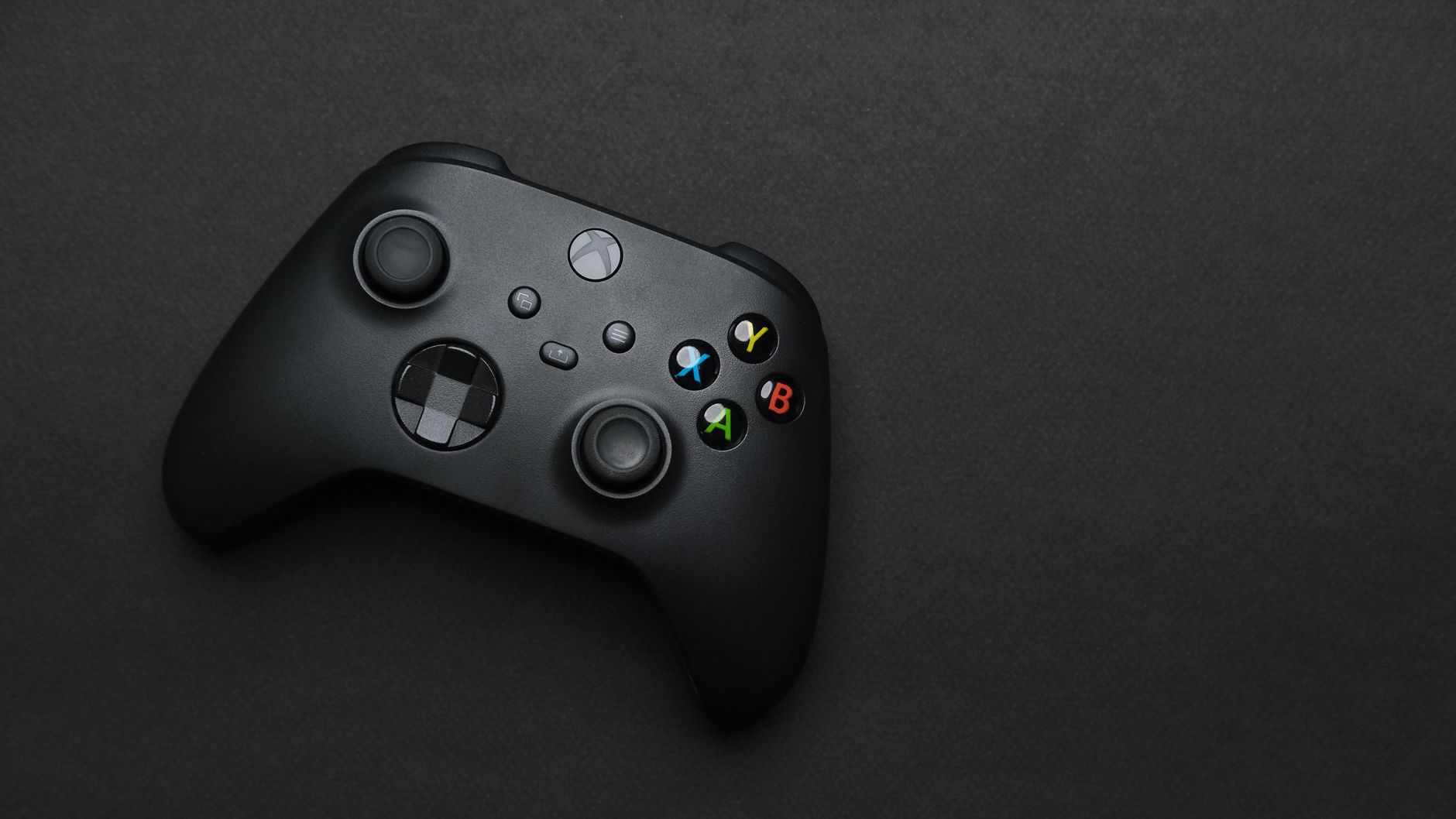
DNS not resolving Xbox occurs when your console can’t translate Xbox service domain names into IP addresses, typically caused by incorrect DNS settings, network misconfiguration, or ISP issues. In 2026, with Xbox Game Pass and cloud gaming central to the ecosystem, DNS failures block access to online multiplayer, game downloads, and streaming services. Fix it by resetting your network settings, using public DNS servers like Cloudflare (1.1.1.1), or contacting your ISP.
Network connectivity issues, including DNS failures, affect approximately 23% of console users according to a 2025 gaming infrastructure survey by Statista. When DNS not resolving Xbox occurs, your gaming session halts—no online multiplayer, no Game Pass access, no cloud saves syncing. For households relying on Xbox for entertainment and gaming, this translates to frustrated users and wasted subscription fees. Understanding DNS troubleshooting saves support tickets and restores service within minutes rather than hours.
DNS (Domain Name System) is the internet’s address book. When you launch an Xbox game or access Xbox Live, your console queries a DNS server asking, “What’s the IP address for xbox.com?” If DNS isn’t resolving, that lookup fails, and your Xbox can’t connect to Microsoft’s servers. Your console essentially becomes blind to the internet, even if your network connection itself is fine.
Xbox relies on DNS for:
A single DNS misconfiguration breaks all of these simultaneously, which is why it feels like a complete network outage even when your internet speed test passes.
Before fixing, confirm DNS is actually the problem:
Incorrect DNS settings on your router: Many routers default to ISP DNS, which can be slow or unstable. If your ISP’s DNS servers are unreliable, Xbox queries timeout.
Misconfigured DNS on Xbox console: Xbox allows manual DNS configuration in Settings > Network > Advanced Settings. If you’ve set an invalid or outdated DNS address here, it breaks resolution.
ISP DNS outages: Your internet service provider’s DNS infrastructure can fail regionally. Major ISPs experience outages affecting millions—your Xbox will fail alongside everything else if this happens.
Firewall or parental control rules: Windows Defender Firewall, third-party security software, or Xbox parental controls can block DNS queries to certain domains.
DHCP lease issues: If your Xbox hasn’t renewed its DHCP lease, it may hold stale DNS server addresses from hours or days prior.
Navigate to Settings > System > Network settings > Advanced settings > Alternate MAC address. Select Clear. Your Xbox will restart and request a fresh network configuration from your router, including new DNS assignments.
Log into your router (typically 192.168.1.1 or 192.168.0.1 in your browser) with admin credentials. Locate DNS settings—usually under LAN > DHCP Server or Internet > DNS. Replace ISP DNS with one of these public options:
Cloudflare (fastest, privacy-focused):
Primary: 1.1.1.1
Secondary: 1.0.0.1

Google DNS (widely reliable):
Primary: 8.8.8.8
Secondary: 8.8.4.4

Quad9 (security-focused):
Primary: 9.9.9.9
Secondary: 149.112.112.112
Save changes. Restart your Xbox afterward—it will pick up the new DNS from the router’s DHCP pool.
If router-level changes don’t work, set DNS on Xbox itself:
If you use third-party firewall software on your network or PC, verify it isn’t blocking Xbox’s DNS queries to ports 53 (UDP/TCP). Cloudflare’s OWASP-compliant DNS doesn’t require special firewall rules—it uses standard DNS protocols that most firewalls allow by default.
If public DNS solves the issue, your ISP’s DNS is the culprit. If manual DNS doesn’t work, contact your ISP support line. Ask them to:
Cloudflare (1.1.1.1) has published performance benchmarks showing median DNS response times of 11ms globally, versus 40-80ms for average ISP DNS. Cloudflare’s infrastructure also prioritizes DNSSEC validation, reducing the risk of DNS spoofing attacks that could redirect your Xbox to malicious servers. As a bonus, Cloudflare publishes transparency reports and doesn’t log your queries, addressing privacy concerns absent from many ISP DNS services.
No, DNS change won’t reduce speed. In fact, using faster public DNS like Cloudflare often improves page load times and Xbox service responsiveness because queries resolve quicker. Speed is determined by your ISP’s connection, not DNS.
DNS issues prevent connection entirely rather than causing lag. However, if DNS resolution is slow (>100ms response time), it can delay game session initialization and matchmaking. Switching to fast DNS reduces this overhead.
Not usually. Factory reset is a last resort only after trying network resets, DNS changes, and ISP verification. A full reset wipes your games and saves unnecessarily in 95% of cases.
Common triggers include router restarts (which can reset DNS settings), ISP maintenance windows, DHCP lease expiration, or upstream network changes on your ISP’s backbone. Check your router’s admin panel for recent restarts and verify DNS settings are still in place.
Yes, if overly restrictive. Parental controls can filter specific domains or protocols. Check Settings > Account > Family > Manage family members > Xbox Series X/S console restrictions and ensure filtering isn’t set to “Strict” without a whitelist that includes core Xbox Live domains.