
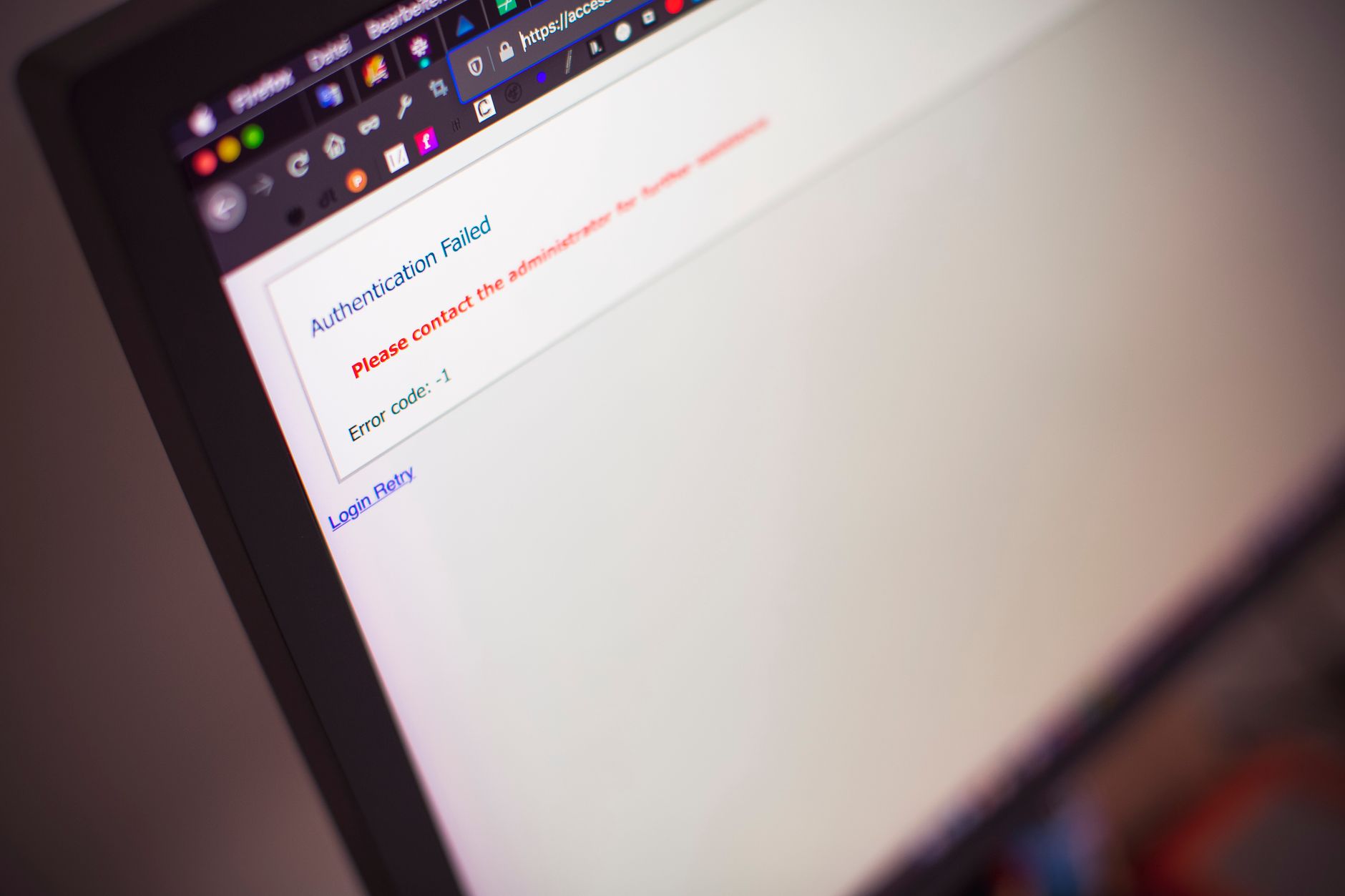
cPanel login not working typically stems from forgotten credentials, browser cache issues, SSL certificate problems, or server connectivity failures. In 2026, most hosting providers enforce stricter authentication protocols and IP whitelisting. Start by clearing your browser cache and cookies, verify your hostname URL, check your internet connection, and reset your password through WHM if you have root access. If issues persist, contact your hosting provider’s support team to confirm server status.
cPanel access is critical for managing domains, email, databases, and files on your hosting account. According to a 2025 Hosting Industry Report by Web Hosting Talk, 34% of support tickets involve authentication or access issues, making login problems one of the most common barriers to server administration. Downtime in accessing your control panel directly impacts your ability to respond to emergencies, deploy updates, or manage user accounts—especially in production environments where every minute counts.
cPanel login failures fall into several categories: credential errors, browser-related issues, server-side problems, and network connectivity. The most frequent culprit is an incorrect username or password—especially if you’ve recently changed your hosting provider or reset your account. Browser cache and cookies can cache outdated session tokens, preventing fresh authentication. On the server side, SSL certificate expiration, firewall rules, IP-based access restrictions, and PHP/Apache misconfigurations block legitimate login attempts. Network issues like DNS propagation delays, ISP-level blocking, or VPN interference can also prevent connection to your cPanel URL.
Follow this systematic approach to isolate and fix the problem:
https://yourdomain.com:2083, https://yourdomain.com/cpanel, or https://your-server-ip:2083. Check your hosting provider’s documentation for the exact URL.nslookup or dig. Ensure your ISP isn’t blocking port 2083 or 2087./usr/local/cpanel/logs/error_log and Apache logs at /var/log/apache2/error_log.Certain error messages point to specific problems. An “Invalid username or password” message after multiple correct attempts suggests your hosting provider’s authentication service (cpsrvd or tailwatchd daemon) may be down or misconfigured. A “Connection refused” or “Connection timeout” error indicates the cPanel server isn’t listening on the expected port—verify your ISP or firewall isn’t blocking port 2083 or 2087. An SSL certificate error (“Your connection is not private”) suggests the server’s SSL cert is expired or self-signed; contact your host to confirm legitimacy. A “Too many login attempts” lockout means you’ve exceeded failed login thresholds; wait 30 minutes and retry, or contact support for account unlock. Rate-limiting and brute-force protection are industry standards as of 2026, so this lockout is a security feature, not a bug.
If you have WHM (WebHost Manager) root access or SSH access, several fixes are possible:
Restart cPanel services:
sudo /usr/local/cpanel/scripts/restartsrv cpsrvd
sudo /usr/local/cpanel/scripts/restartsrv tailwatchd
sudo /usr/local/cpanel/scripts/restartsrv httpd
Reset a user’s cPanel password from the command line:
whmapi1 passwd_pop username=testuser password=NewPassword123Check cPanel service status:
sudo systemctl status cpanelClear stale sessions and temp files:
rm -rf /var/cpanel/sessions/*
rm -rf /tmp/cpsrvd*
If your server runs cPanel & WHM version 88 or later, ensure Authn Service is running: sudo systemctl status cpanel_authnservice. According to cPanel’s 2025 development notes, Authn Service replaced legacy authentication in newer releases and requires explicit validation.
Adopt these practices to minimize recurrence: store your cPanel credentials securely in a password manager with strong, unique passwords; enable two-factor authentication (2FA) where your host supports it; bookmark the correct cPanel URL to avoid typos; keep your browser and OS updated to ensure SSL/TLS compatibility; whitelist your primary IP address in your hosting provider’s security settings if available; and periodically test login access from different networks. Many modern hosting providers (Cloudflare, AWS, DigitalOcean) integrate identity management APIs—if your host offers OAuth or SSO, use it for centralized credential management.
This usually indicates a desktop browser issue: stale cache, conflicting extensions, or local firewall rules. Clear your browser cache, disable extensions temporarily, and test in incognito mode. If mobile works, desktop is almost certainly client-side. Your ISP or corporate firewall might also block port 2083 on desktop networks but not mobile data.
Yes. Use your hosting provider’s client portal to request a password reset email, which arrives within seconds. If you have SSH access and sudo privileges, use the whmapi1 passwd_pop command shown above. If you’ve lost access to both email and SSH, contact your host’s support team with proof of identity to regain access.
Yes. Port 2083 uses HTTPS/TLS encryption by default. However, ensure your browser displays a valid SSL certificate and the padlock icon. Self-signed certificates are common on cPanel but trigger warnings in modern browsers—this is expected unless your host deployed a public CA certificate. Always verify the hostname matches your cPanel URL.
This means cPanel’s authentication daemon crashed or failed to start. Restart it using: sudo /usr/local/cpanel/scripts/restartsrv cpsrvd. If it fails to restart, check system logs (/var/log/messages) for disk space issues, memory exhaustion, or service dependency failures. Contact your host if the daemon won’t stay running.
Not natively in cPanel, but many hosting providers add this at the account level or firewall. Contact your host to enable IP restrictions—you’ll list trusted IP addresses, and login attempts from other IPs are blocked. This is especially useful for production servers. Some hosts integrate with ModSecurity or Cloudflare WAF to enforce additional IP-based rules.