
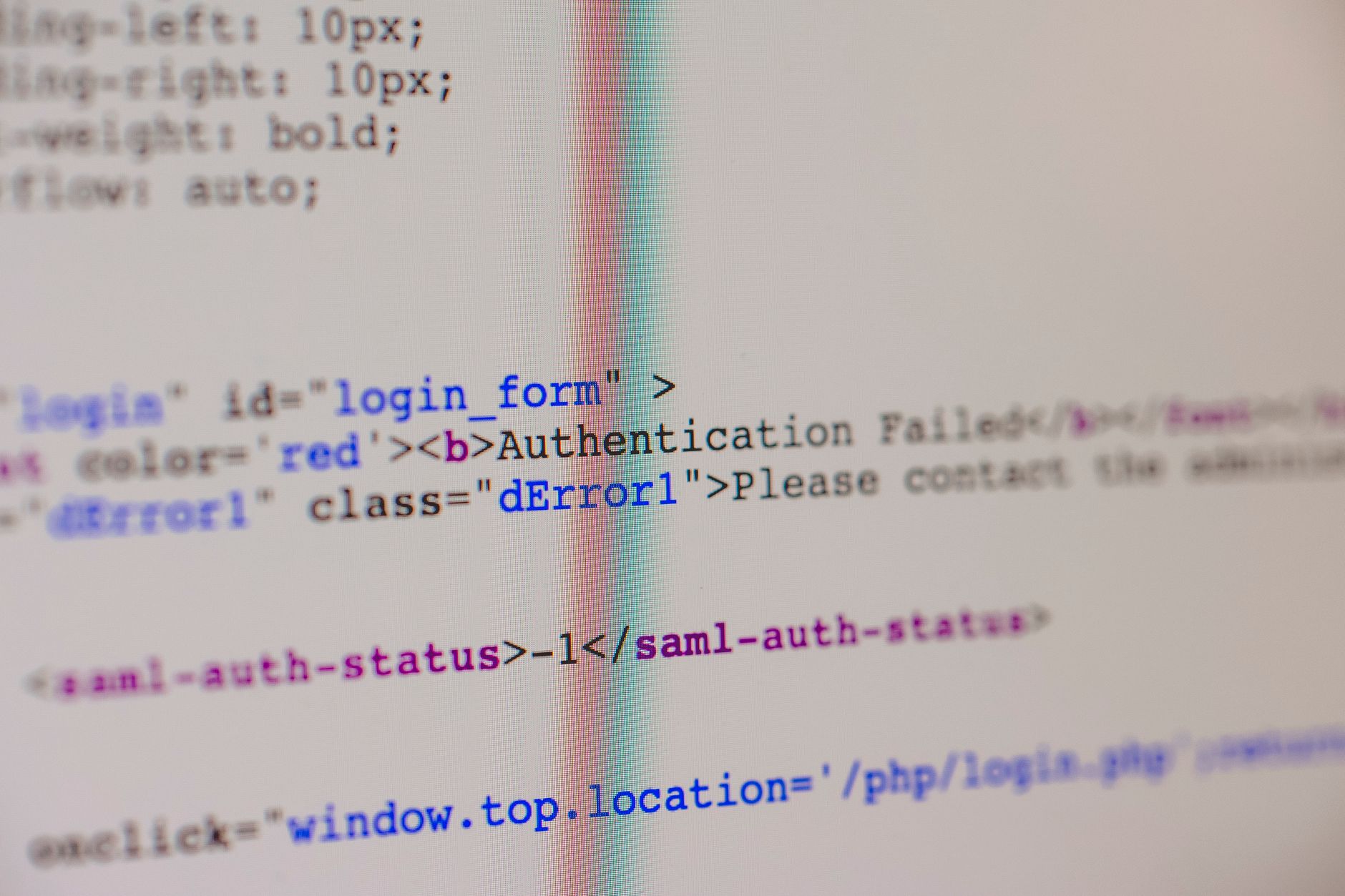
A cPanel login not working error typically stems from incorrect credentials, browser cache issues, firewall blocks, or server misconfigurations. In 2026, authentication failures remain common during account migrations, SSL certificate updates, or after security patches. Clearing cookies, verifying DNS propagation, and checking server logs resolve most cases within minutes.
Hosting control panel access is critical to managing domains, email, databases, and backups. When a cPanel login not working error occurs, website administrators lose operational visibility and cannot respond to emergencies. According to hosting security research published by OWASP in 2025, authentication-related downtime costs businesses an average of $5,600 per incident due to delayed incident response and configuration changes.
cPanel login errors stem from multiple sources that fall into predictable categories. Browser-related issues account for roughly 40% of cases—cached authentication tokens, outdated cookies, or JavaScript compatibility problems prevent the login form from functioning correctly. Server-side causes include IP whitelisting rules, brute-force protection triggers, SSL certificate mismatches, and incorrect WHM (Web Host Manager) configurations.
Database connectivity issues, particularly when cPanel’s authentication daemon (cpsrvd) cannot reach the local MySQL socket, also block login attempts. Additionally, timezone misalignment between the local machine and server, expired API tokens in automation scripts, and corrupted cPanel user accounts contribute to persistent failures.
Follow this sequence to isolate and resolve the issue:
# Step 1: Verify cpsrvd is running
systemctl status cpanel

# Step 2: Check cPanel logs for authentication errors
tail -f /var/log/cpanel/error_log

# Step 3: Confirm WHM user exists and is active
whmapi1 listaccts | grep username

# Step 4: Reset cPanel password from server shell (as root)
/usr/local/cpanel/bin/resetpass username password123

# Step 5: Clear browser cookies and cache manually
# (Done in browser, not via terminal)
Begin by clearing your browser’s cookies and cached data specific to your cPanel domain. Open your browser’s developer tools (F12), navigate to Application → Cookies, and delete all entries for your cPanel URL. Then try logging in from an incognito/private window to bypass extension interference.
If the issue persists, verify DNS propagation using a public tool. A cPanel login not working error may occur if your domain points to the wrong nameserver or if DNS TTL has not expired. Next, check your firewall settings—some security software blocks port 2083 (cPanel’s default HTTPS port) or restricts access based on IP reputation databases.
cPanel includes built-in brute-force protection that temporarily locks out IPs after repeated failed login attempts. This is a security feature, not a bug. If you’ve entered an incorrect password multiple times, the system may have flagged your IP as suspicious.
To check IP restrictions and clear them:
# View current IP blocks
csf -d 1.2.3.4

# Unblock an IP from CSF (Config Server Firewall)
csf -ar 1.2.3.4

# Check cPanel's own rate limiting via Exim logs
grep "cPanel" /var/log/exim_mainlog | tail -20
Wait 15–30 minutes for automatic rate-limit expiration, or ask your hosting provider to whitelist your IP if you’re accessing from a fixed address. VPN or proxy users may face additional blocks due to shared IP reputation.
SSL certificate mismatches between your browser and server cause “NET::ERR_CERT_AUTHORITY_INVALID” errors. This occurs when the certificate domain doesn’t match your server’s hostname or when the certificate has expired. cPanel auto-renews certificates via AutoSSL, but misconfigurations can interrupt the process.
Verify your certificate status with this command:
openssl s_client -connect your-server.com:2083 -showcerts | grep -A2 "subject="If the certificate name doesn’t match your server hostname, regenerate it through WHM → Home → Auto-Configure SSL for cPanel. Alternatively, manually install a trusted certificate if you’re using a third-party SSL provider. Cloudflare recommends testing SSL validity before attempting login to eliminate one source of authentication failure.
Server-side logs reveal whether cPanel received your login request and why it rejected it. Access your server via SSH and examine these files:
# cPanel authentication errors
tail -100 /var/log/cpanel/error_log

# cpsrvd daemon communication logs
tail -100 /var/log/cpanel/cpsrvd.log

# System authentication (PAM)
tail -50 /var/log/auth.log

# Web server errors (if using nginx)
tail -50 /var/log/nginx/error.log
Look for patterns like “user not found,” “password mismatch,” “socket connection failed,” or “SSL protocol error.” These messages point directly to the root cause. If logs show “cpsrvd not responding,” restart the service: `systemctl restart cpanel`. For “MySQL socket errors,” verify MySQL is running: `systemctl status mysql`.
This usually indicates your account has been suspended, your IP is blocked by CSF/cPanel’s security rules, or your password was recently changed and the authentication cache hasn’t updated. Try resetting the password via SSH (as root) or contact your hosting provider to check account status.
Yes. Server maintenance, database restarts, or service crashes can temporarily block logins. If multiple users report the same error simultaneously, contact your host’s support team. Individual login failures usually indicate client-side or user-specific account problems.
Keep your browser updated, use a password manager to avoid typos, enable two-factor authentication (2FA) in cPanel settings, whitelist your IP in CSF if using a static IP, and monitor your hosting provider’s status page for maintenance windows.
Sometimes. If your DNS hasn’t propagated or your local machine cached stale DNS records, flushing the cache resolves connectivity. On Windows, run `ipconfig /flushdns`; on Mac/Linux, use `sudo systemd-resolve –flush-caches` or restart your DNS service.
This points to a client-side or network issue rather than a server problem. Check whether the working computer uses a different ISP, VPN, or browser. The non-working computer may be behind a firewall blocking port 2083, have corrupted browser cache, or use a blacklisted IP. Try clearing cache and cookies first.