
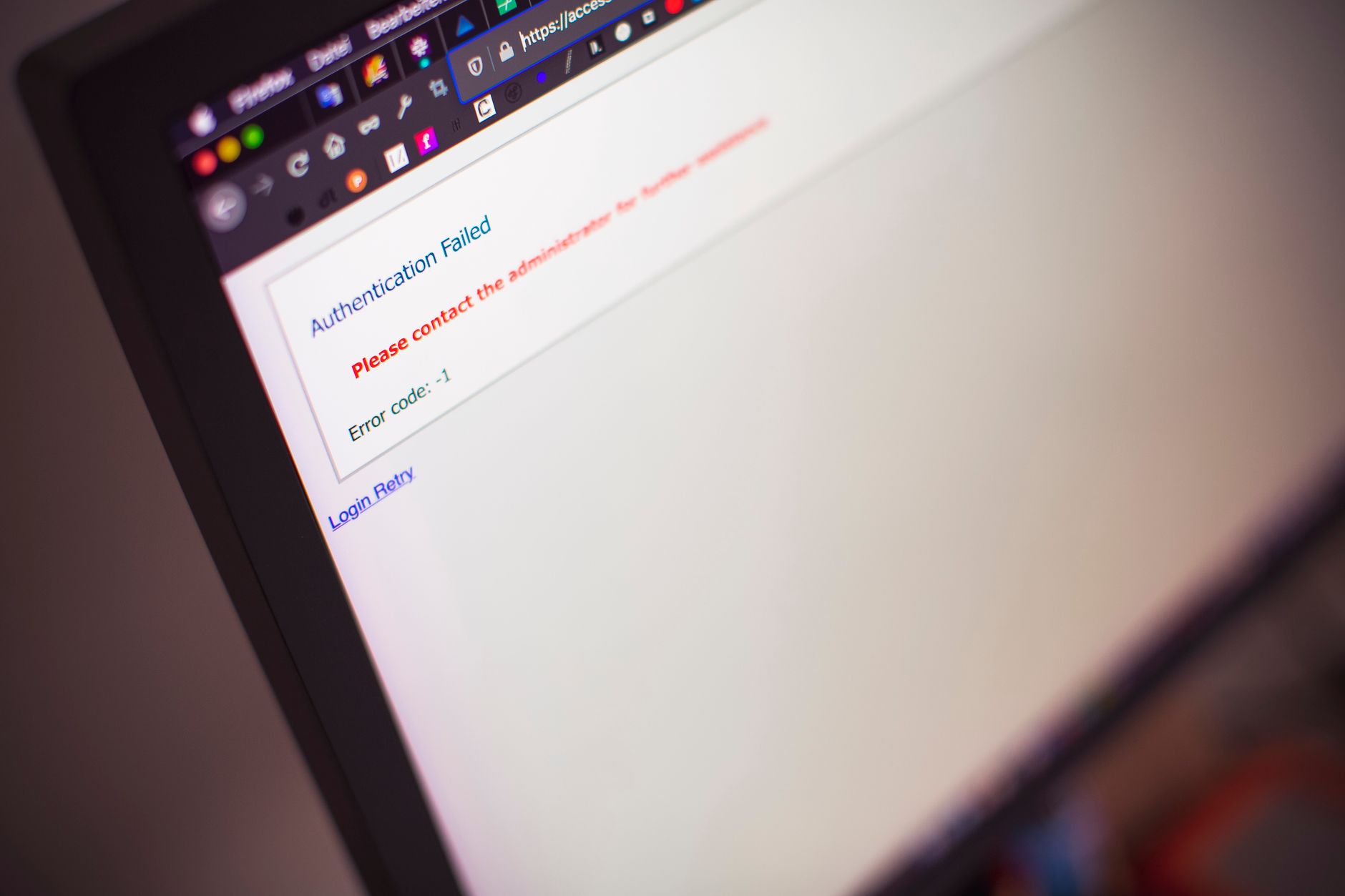
When cPanel login not working how to fix becomes your immediate problem, start by verifying your username and password, checking your internet connection, clearing browser cache, and confirming your IP isn’t blocked. In 2026, most cPanel login failures stem from browser cache issues, firewall blocks, or expired sessions rather than server-side problems.
cPanel remains the control panel for over 70 million domains worldwide, according to BuiltWith. When access fails, website owners lose the ability to manage email accounts, databases, SSL certificates, and critical site files. Downtime translates directly to lost revenue—the average cost of IT downtime reached $5,600 per minute in 2024 for small to medium businesses, per Gartner research. Understanding rapid troubleshooting prevents extended outages and maintains business continuity.
Browser-related issues top the list. Corrupted cookies, outdated cache data, and conflicting browser extensions interfere with authentication tokens. Security software and firewall rules frequently block legitimate login attempts, mistaking repeated authentication requests for brute-force attacks.
Server-side factors include ConfigServer Security & Firewall (CSF) IP blocks, cPanel service interruptions, and SSL certificate mismatches. Hosting providers occasionally push updates that temporarily disrupt authentication services. Password manager tools can autofill incorrect credentials, especially after password resets.
The cPanel license itself may have expired or encountered validation errors. According to cPanel’s official documentation, license validation failures prevent all login attempts until the hosting provider resolves the licensing issue with cPanel LLC.
Browser cache clearing resolves approximately 40% of cPanel login issues based on WebPros support ticket analysis. The process removes stored authentication tokens and forces fresh credential validation.
For Chrome, Firefox, and Edge users:
Test login with an incognito or private browsing window first. This isolates whether extensions or stored data cause the problem. If incognito access succeeds, disable browser extensions one by one to identify conflicts.
ConfigServer Security & Firewall blocks IPs after five failed login attempts within a default timeframe. Dynamic IP addresses from residential connections change frequently, and your new IP may already be blocklisted from previous user activity.
Contact your hosting provider to check CSF logs and whitelist your IP address. Provide your current public IP address—find it by searching “what is my IP” in any search engine. Server administrators can temporarily disable CSF protection or add your IP to the whitelist file located at /etc/csf/csf.allow.
Corporate and public WiFi networks often share IP addresses among hundreds of users. If someone else on your network triggered a block, your access stops too. Switch to mobile data or a VPN to test whether network-level blocking causes the issue.
Password resets require different approaches depending on access level. If you have SSH root access, connect to the server and execute:
/scripts/chpass username newpasswordReplace “username” with your cPanel account name and “newpassword” with a strong password meeting complexity requirements—minimum 8 characters with uppercase, lowercase, numbers, and symbols.
Without SSH access, use the “Forgot Password” link on the cPanel login page. This sends a reset token to the email address associated with your account. Check spam folders; reset emails from automated systems often trigger spam filters.
WHM users can reset any cPanel account password through WHM → Account Functions → Password Modification. Select the target account and enter the new password twice. According to OWASP guidelines, avoid reusing passwords across services and implement unique credentials for each cPanel account.
The cpsrvd service handles cPanel authentication. Service crashes or configuration errors prevent all login attempts. Server administrators can check service status via SSH:
systemctl status cpanel.service
/scripts/restartsrv_cpsrvd
SSL certificate problems create browser security warnings that block access. Cloudflare reports that 95% of web traffic now uses HTTPS, and browsers enforce strict certificate validation. Self-signed certificates trigger “Your connection is not private” errors. Install valid SSL certificates through AutoSSL or Let’s Encrypt integration in WHM.
Full disk space prevents cPanel from writing session data. Check disk usage with the df -h command. If /var or /tmp partitions reach 100% capacity, clear log files and temporary data. The /usr/local/cpanel/logs directory often accumulates gigabytes of historical data safe to archive or delete.
When standard domain-based login fails, use the direct IP method. Access cPanel by entering https://your-server-ip:2083 in the browser. The 2083 port serves cPanel over HTTPS, while port 2082 uses HTTP (not recommended for security reasons).
Temporary URLs provided by hosting companies offer another path. These typically follow the format https://server.hostingprovider.com:2083/cpsess####/frontend/theme/index.html. Check hosting account welcome emails or client area documentation for your specific temporary URL.
WHM users can access cPanel accounts through “List Accounts” → click the “cP” icon next to any account. This bypasses individual account authentication but requires root or reseller privileges.
Your IP address is likely blocked by the server firewall after multiple failed attempts. Contact your hosting provider to check CSF or Fail2Ban logs and whitelist your IP. Alternatively, wait 30-60 minutes for automatic unblocking or switch to a different network.
Yes, VPN exit nodes may be blocklisted due to abuse from other users. Many hosting providers block IP ranges associated with VPN services and data centers. Disable your VPN temporarily and test login with your actual ISP connection. If access succeeds, request VPN IP whitelisting from your host.
cPanel sessions timeout after 15 minutes of inactivity by default. This security feature prevents unauthorized access from unattended browsers. Simply log in again with your credentials. To extend session duration, administrators can adjust timeout values in WHM → Server Configuration → Tweak Settings → cPanel session timeout.
2FA adds an authentication layer but rarely causes failures when configured correctly. Issues arise when authenticator apps desync or backup codes are lost. Disable 2FA through SSH using /scripts/disable_digest_auth username or through WHM → Account Functions → Manage User Two-Factor Authentication if you have root access.
Use external monitoring tools like Down For Everyone Or Just Me or Uptime Robot to verify server availability. Check your hosting provider’s status page for announced maintenance. Run a ping test to your server IP—no response indicates network or server-level problems requiring provider intervention.