
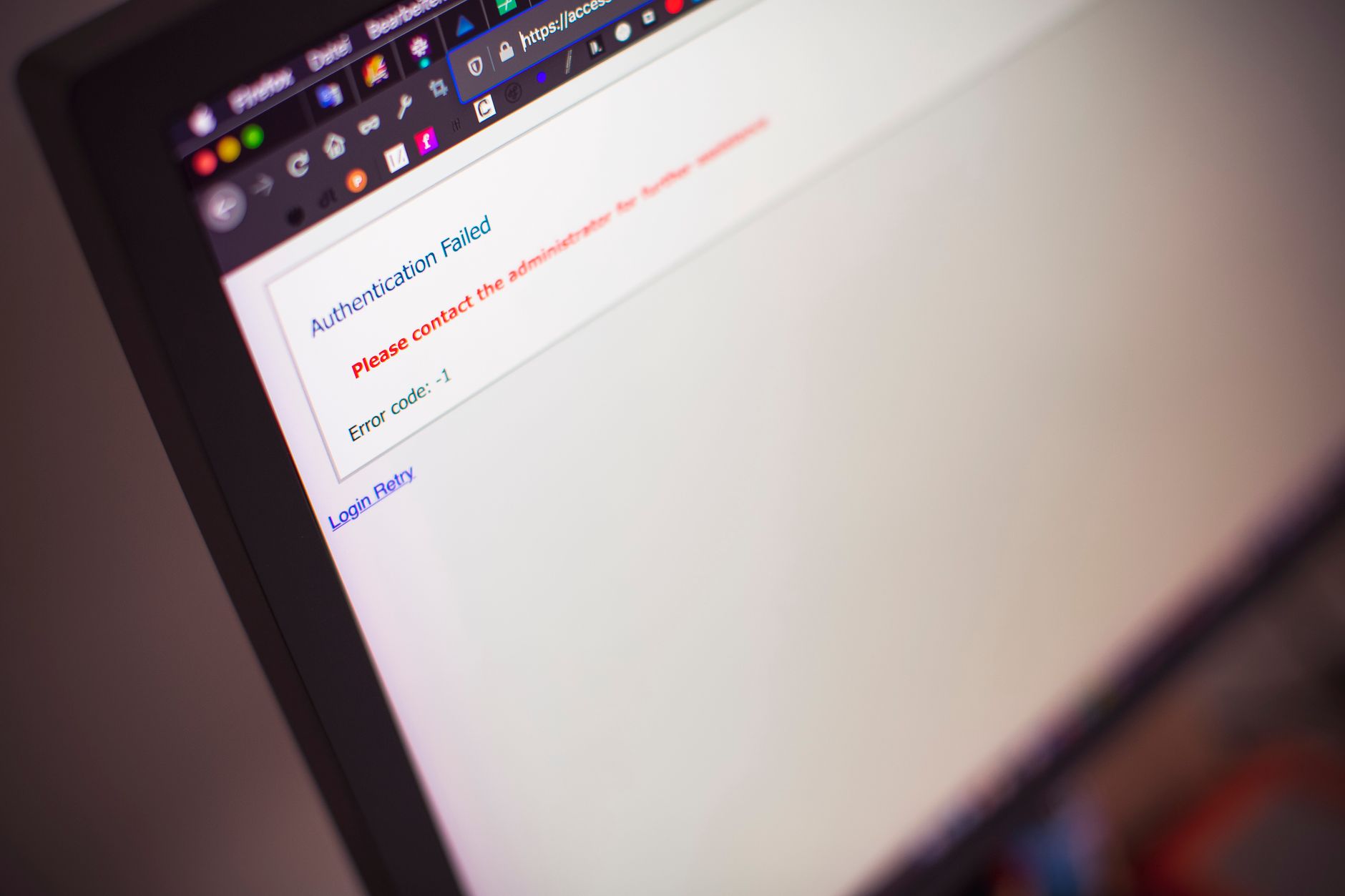
When cPanel login not working, the issue typically stems from incorrect credentials, browser cache conflicts, IP blocks, or server connectivity problems. In 2026, most login failures can be resolved by clearing cookies, verifying your username format (username@domain or just username), checking for firewall rules, and confirming the server is responding on ports 2082/2083.
cPanel remains the most widely deployed web hosting control panel, powering over 70 million domains according to W3Techs data. When cPanel login not working, website owners lose access to critical functions including email management, database administration, file uploads, and SSL certificate installation. Downtime during login issues can delay site launches, prevent security patches, and interrupt business operations for thousands of users simultaneously when server-side problems occur.
Login failures fall into five primary categories. Credential errors account for approximately 40% of support tickets, where users enter passwords correctly but use the wrong username format. Browser-related issues represent another 25%, particularly after browser updates that change cookie handling or TLS cipher support.
Server-side blocks create the third category. cPanel’s cPHulk brute-force protection automatically blocks IP addresses after failed login attempts—typically five failures within a short window triggers a temporary ban. Firewall rules at the network level can also prevent access when hosting providers implement geographic restrictions or DDoS mitigation.
The fourth cause involves SSL certificate problems. When accessing cPanel via HTTPS on port 2083, expired or self-signed certificates cause browser warnings that users may interpret as login failures. Finally, server resource exhaustion—high CPU load, memory limits, or MySQL crashes—can prevent the cPanel process from responding even when credentials are correct.
Start with a clean slate. Open an incognito or private browsing window and attempt to access cPanel at yourdomain.com:2083. If login succeeds in private mode but fails in regular browsing, cached credentials or corrupt cookies are responsible.
Clear browser data specifically for your cPanel domain. In Chrome, visit chrome://settings/siteData, search for your domain, and remove all entries. In Firefox, use about:preferences#privacy and manage data for individual sites. Safari users should navigate to Preferences → Privacy → Manage Website Data.
Disable browser extensions temporarily, especially password managers, ad blockers, and security tools. Extensions like NoScript or Privacy Badger can interfere with cPanel’s JavaScript authentication flow. Test with extensions disabled, then re-enable one at a time to identify conflicts.
Try an alternative browser. If you typically use Chrome, test with Firefox or Edge. Cross-browser testing isolates whether the issue stems from browser-specific TLS implementations or rendering engine quirks in cPanel’s interface.
cPanel accepts three username formats depending on your hosting configuration. The primary format is your cPanel username alone—typically 8 characters or fewer, assigned when your hosting account was created. This username appears in your welcome email from your hosting provider.
Some servers require the format [email protected]. This email-style format is common on shared hosting where the server hosts multiple domains. Check your hosting provider’s knowledge base or control panel access instructions for the required format.
The third format, username@servername, applies when accessing cPanel through the server hostname rather than your domain. This format is rare but appears on VPS and dedicated server environments where direct server access is configured.
Verify your username by checking your hosting welcome email, visiting your provider’s client area where cPanel credentials are displayed, or contacting support. According to cPanel’s official documentation, username case sensitivity varies by installation—some servers treat “User” and “user” as different accounts.
IP blocks manifest as immediate connection refusals or “Access Denied” messages before reaching the login screen. Test from a different network—use your mobile phone’s cellular data instead of WiFi—to determine if your IP address is blocked.
If you have WHM (Web Host Manager) access, log into WHM and navigate to Security Center → cPHulk Brute Force Protection. Search for your IP address in the blocked list. You can whitelist your IP or remove the block directly from this interface.
Without WHM access, contact your hosting provider. Supply your current IP address (find it at whatismyipaddress.com) and request they check cPHulk logs and firewall rules. Most providers can resolve IP blocks within minutes through their ticketing system.
For VPS and dedicated server administrators, SSH into the server and examine CSF (ConfigServer Security & Firewall) rules:
csf -g your.ip.address.here
grep "your.ip.address" /var/log/lfd.log
This shows whether CSF blocked your IP and the reason. Temporary unblocking is possible with csf -tr your.ip.address.here. Permanent whitelisting requires adding the IP to /etc/csf/csf.allow.
Connection timeouts indicate server-level problems rather than authentication issues. First, verify the server is online by pinging the hostname:
ping yourdomain.com
ping servername.yourhostingprovider.com
If ping succeeds, test port availability. cPanel operates on port 2082 (HTTP) and 2083 (HTTPS). Use telnet or a port checker tool:
telnet yourdomain.com 2083
If the connection refused or times out, the cPanel service may be stopped. Hosting providers can restart the service through WHM or command line. For self-managed servers, restart cPanel with:
/usr/local/cpanel/scripts/restartsrv_cpsrvd
Check server status pages. Major hosting providers including Hostinger, Bluehost, and SiteGround maintain status dashboards showing ongoing incidents. Visit status.yourprovider.com or check their Twitter account for outage notifications.
Resource exhaustion requires intervention. If you have SSH access, check load average and disk space:
uptime
df -h
free -m
Load averages above the number of CPU cores indicate resource contention. Disk usage at 100% prevents cPanel from writing logs and session data. These require investigation into specific processes consuming resources.
Password resets follow different paths based on access level. If you have WHM root access, log into WHM, navigate to Account Functions → Password Modification, select the cPanel account, and set a new password. This bypasses email verification and takes effect immediately.
Through your hosting provider’s client area, most providers offer a “Reset cPanel Password” button that sends a password reset link to the account’s registered email address. This process typically completes within 5-10 minutes according to Bluehost’s support documentation.
For command-line password resets on self-managed servers, use the WHM API or directly modify the account:
/usr/local/cpanel/bin/set_password username newpassword
Replace “username” with your cPanel username and “newpassword” with a strong password containing uppercase, lowercase, numbers, and symbols. cPanel enforces minimum strength requirements—weak passwords will be rejected.
After password reset, wait 2-3 minutes before attempting login. Password changes propagate through cPanel’s authentication system and may not be immediate. Clear browser cache after password reset to prevent cached credential conflicts.
This error indicates your IP address has been temporarily blocked by cPHulk after multiple failed login attempts. Wait 30-60 minutes for the automatic block to expire, or contact your hosting provider to remove the block immediately. Using a VPN or different network (like mobile data) lets you access cPanel while the block remains active on your primary IP.
Yes, password managers, privacy extensions, and ad blockers frequently interfere with cPanel’s authentication process. Extensions that block JavaScript, modify cookies, or filter POST requests can prevent login credentials from reaching the server. Test in incognito mode with extensions disabled, then selectively enable extensions to identify the conflict.
Port 2082 serves cPanel over HTTP (unencrypted), while port 2083 serves cPanel over HTTPS (encrypted with SSL/TLS). Always use port 2083 for security—credentials transmitted over port 2082 can be intercepted. If port 2083 shows SSL certificate warnings, you can temporarily use 2082 to access cPanel and install a valid SSL certificate.
cPHulk blocks typically expire after 30 minutes to 2 hours depending on server configuration. System administrators can customize block duration in WHM under cPHulk Brute Force Protection settings. Repeated blocks from the same IP address may result in longer durations or permanent blocks requiring manual intervention.
This indicates DNS resolution problems. Your domain’s DNS records may not be properly configured to point to your server’s IP address, or DNS propagation is incomplete after recent changes. DNS changes typically propagate within 24-48 hours. Use the server IP address format serverip:2083 as a temporary workaround while DNS updates complete.