
“`html
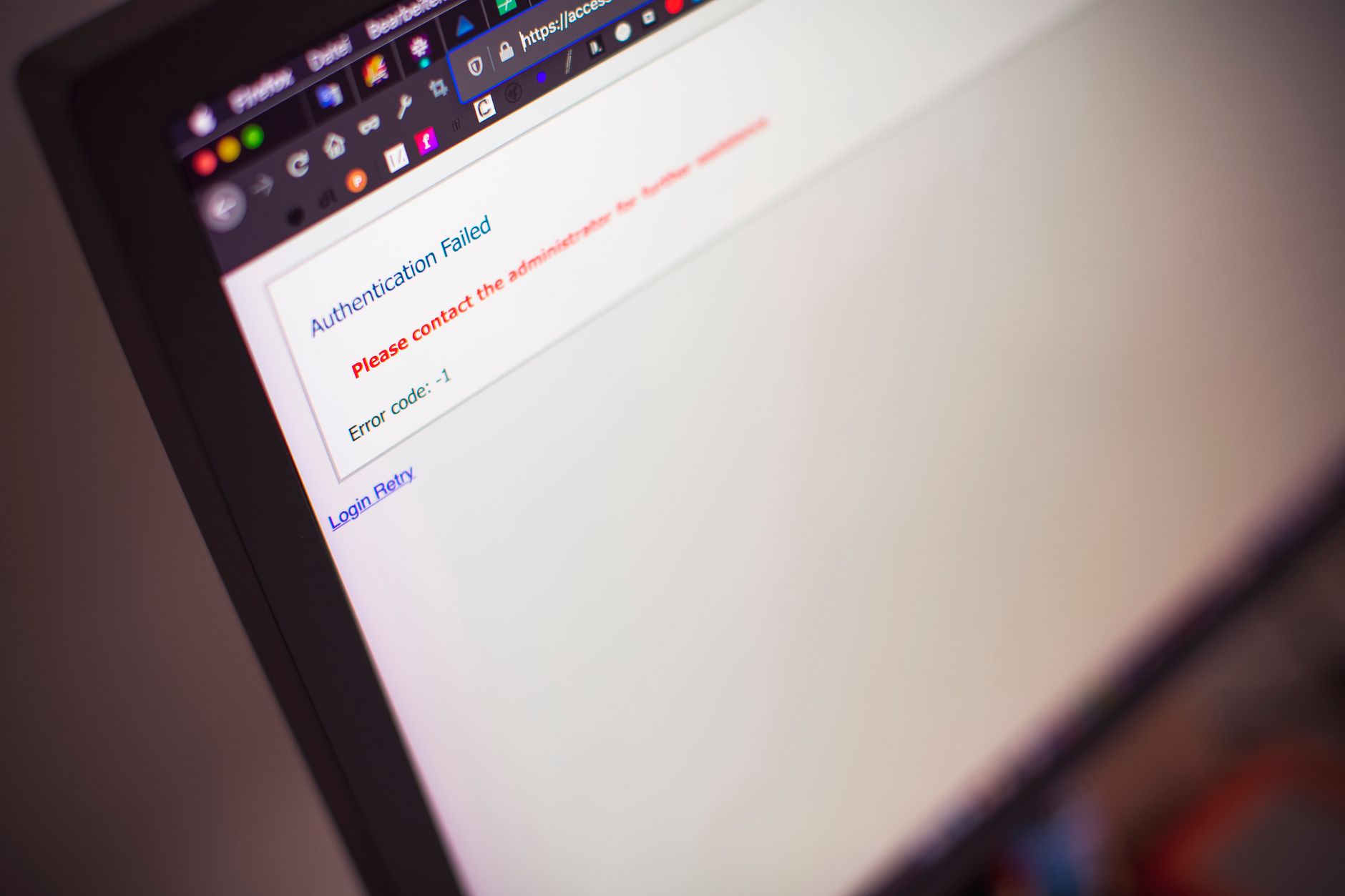
When cPanel login fails, start by verifying your credentials through WHM or your hosting provider’s password reset tool, then confirm that port 2083 (HTTPS) or 2082 (HTTP) is reachable using telnet or a browser test. Most login failures stem from expired passwords, IP blocks after failed attempts, or SSL certificate mismatches that browsers flag as security warnings.
CPanel’s cPHulk service automatically blocks IP addresses after multiple failed authentication attempts. The default threshold is five failures within fifteen minutes, though many hosts tighten this to three. I’ve seen servers where a single typo followed by two more tries during morning coffee locked out an entire office subnet for twenty minutes.
The protection mechanism writes entries to /var/log/messages and maintains a database in /var/cpanel/hulkd. When you trip the limit, cPHulk adds your IP to a temporary blacklist. The block duration depends on server configuration—usually fifteen to thirty minutes, but some administrators set permanent blocks that require manual WHM intervention.
According to cPanel’s 2025 security report, brute-force login attempts account for 67% of all unauthorized access attempts on shared hosting platforms. That statistic explains why most hosting providers enable cPHulk by default, even though it occasionally frustrates legitimate users.
Browser warnings like “Your connection is not private” or “NET::ERR_CERT_AUTHORITY_INVALID” appear when the SSL certificate on port 2083 doesn’t match the domain you’re accessing. Shared hosting servers often present a certificate for the server hostname (server245.hostingprovider.com) while you’re trying to reach cpanel.yourdomain.com.
Self-signed certificates trigger the same warnings. Hosts that haven’t configured AutoSSL or Let’s Encrypt for service SSL certificates leave their cPanel interface protected by a default self-signed cert that browsers reject. You can proceed past the warning by clicking “Advanced” and “Continue to site,” but that trains users to ignore certificate errors—a bad security habit.
The proper fix requires either accessing cPanel through the server’s actual hostname or asking your host to install a valid certificate for the cPanel service. On VPS and dedicated servers, you control this through WHM under “Manage Service SSL Certificates.” Shared hosting customers need to open a ticket.
Open a terminal and run telnet yourdomain.com 2083. A successful connection shows “Connected to” followed by encrypted gibberish (the SSL handshake). Connection refused means the port is closed at the firewall level. Connection timeout indicates a routing problem or server outage.
Firewalls like CSF (ConfigServer Security & Firewall) sometimes block entire country IP ranges or cloud provider subnets. I once spent forty minutes troubleshooting a “connection refused” error before realizing the server blocked all AWS EC2 addresses after a DDoS incident. The solution was adding my specific IP to the allowlist through WHM’s CSF interface.
Online port checkers like PortCheckTool.com verify external accessibility without requiring local tools. They’re helpful when you’re locked out of your own machine or testing from a restricted network. Just remember that internal firewall rules can still block you even when external scanners show the port open.
This specific error often means password database corruption or a mismatch between /etc/shadow and cPanel’s authentication cache. First, try resetting the password through your hosting provider’s control panel (the one above cPanel, often called a client area or billing portal). That triggers a fresh write to all authentication databases.
For VPS or dedicated server root access, you can reset any cPanel user password through SSH:
/scripts/chpass username newpasswordpasswd username for system-level reset/scripts/restartsrv_cpsrvdA 2024 study by Plesk found that 23% of hosting support tickets related to login issues involved password sync failures between different authentication layers. The problem intensified when hosts migrated from older cPanel versions without running post-migration password rehash scripts.
When you enable 2FA through cPanel’s security settings, every login requires both your password and a time-based code from an authenticator app. Lose access to that app—phone upgrade, factory reset, uninstalled by accident—and you’re locked out completely. No backup codes? You’re calling hosting support.
The authentication flow works like this: cPanel validates your password, then checks for a matching TOTP token in its database. Only when both match does it grant access. If the token file at ~/.cplogin_twofa gets corrupted or the server clock drifts more than thirty seconds out of sync, valid codes fail authentication.
Server clock drift is sneakier than it sounds. Time-based tokens depend on synchronized clocks between your phone and the server. I’ve diagnosed “invalid 2FA code” errors that disappeared after running ntpdate -u pool.ntp.org to correct a three-minute clock skew. Virtualization platforms sometimes lose accurate timekeeping under heavy load.
Hosting providers can disable 2FA for your account through WHM. You’ll need to verify your identity through alternate channels (ticket system, phone support, data center ID check for dedicated servers). Some hosts require a signed support request to prevent social engineering attacks.
Shared VPN exit nodes and datacenter proxy IPs often land on hosting provider blacklists. When thousands of users share the same outbound IP, that address eventually gets flagged for spam, scanning, or brute-force attempts. CSF maintains several public blocklists (Spamhaus, StopForumSpam, Project Honeypot) that automatically block known bad actor ranges.
Geographic restrictions add another layer. Some European hosts block entire Asian or African IP blocks due to high attack volumes from those regions, per Cloudflare’s 2025 DDoS threat report. The restriction isn’t about discrimination—it’s about stopping 94% of automated attacks that originate from compromised servers in specific hosting networks.
Test by disconnecting from your VPN and accessing cPanel directly. Success confirms the block. The fix depends on your needs: ask your host to allowlist your VPN provider’s IP ranges, use a different VPN endpoint, or access cPanel only from your direct connection. For development teams, a dedicated static IP solves the problem permanently.
Private browsing modes and aggressive cookie blockers prevent cPanel from maintaining your login session. The session token stored in cookies tells cPanel you’re already authenticated. Block that cookie, and every page load looks like a fresh visitor attempting to access restricted areas.
Third-party cookie restrictions in Safari and Firefox sometimes interfere with cPanel’s cross-domain session management, especially when your hosting provider uses a separate domain for the cPanel service. The login succeeds but immediately bounces you back to the login page because the session cookie never gets set.
Browser extensions cause subtle problems. I’ve seen password managers inject extra form fields that confused cPanel’s authentication parser, ad blockers that stripped session tokens from URL parameters, and security extensions that blocked the WebSocket connections required for real-time file manager updates. Test in a clean browser profile—no extensions, default settings—to isolate the cause.
Clear your browser cache and cookies for the cPanel domain specifically. A corrupted cache entry can serve an old login page that submits credentials to a deprecated authentication endpoint. On Chrome, open DevTools (F12), right-click the refresh button, and select “Empty cache and hard reload” while the login page is open.
Account suspension blocks all cPanel access immediately. The suspension usually stems from billing issues, terms of service violations, or security concerns like malware detection. Contact your hosting provider directly—cPanel login won’t work until they unsuspend the account through WHM.
Resource limit violations trigger automatic suspensions on some shared hosting platforms. Exceeding your allocated disk space, bandwidth cap, or process limits can result in instant suspension. The hosting provider should send email notifications before taking action, but email deliverability issues sometimes delay or prevent those warnings from reaching you.
Check your hosting provider’s billing portal or client area dashboard. Most providers display suspension reasons and payment status there. A billing hold might only require updating a credit card; a security suspension requires opening a support ticket and potentially cleaning malware from your site as detailed in our WordPress malware removal guide.
Start with /usr/local/cpanel/logs/login_log. This file records every authentication attempt with timestamps, usernames, source IPs, and success/failure status. A pattern of failures from your IP followed by a long gap suggests you tripped the cPHulk threshold.
Apache error logs at /usr/local/cpanel/logs/error_log capture SSL handshake failures and certificate problems. Look for “SSL handshake failed” or “certificate verify failed” messages that correlate with your login attempts. These logs require root SSH access to view.
The /var/log/messages system log shows firewall blocks, service crashes, and authentication daemon errors. Grep for “cpsrvd” entries around your login time to spot service failures. For example: grep cpsrvd /var/log/messages | tail -50 shows recent cPanel service activity.
The default cPHulk block lasts fifteen minutes after the last failed attempt. Administrators can configure permanent blocks or extend the duration to several hours. Contact your hosting provider to remove a block immediately if you’re locked out during an emergency. They can whitelist your IP through WHM’s cPHulk interface in under two minutes.
No direct SSH equivalent exists, but you can perform most cPanel functions through command-line scripts in /usr/local/cpanel/scripts/. For example, /scripts/addpop [email protected] password creates an email account without touching cPanel. The UAPI system provides programmatic access to cPanel functions through authenticated API calls if you have a valid API token.
CPanel uses port 2083 for HTTPS access and port 2082 for HTTP. WHM (the root-level control panel) uses ports 2087 (HTTPS) and 2086 (HTTP). Shared hosting customers typically only need 2083 access. Most hosting providers redirect HTTP requests to HTTPS automatically, so port 2082 often gets blocked at the firewall to enforce encrypted connections.
Session timeout settings in WHM control how long idle sessions remain valid. The default fifteen-minute timeout logs out inactive users automatically. Shared browser sessions, dynamic IP addresses that change mid-session, and strict cookie policies can also trigger premature logouts. Ask your hosting provider to extend the session timeout if you need longer idle periods for legitimate work.
Check your hosting provider’s status page or Twitter account for outage announcements. Use a service like DownDetector to see if other customers report problems. Ping the server hostname and run telnet servername.com 2083 from an external network. If those tests fail while the main website loads normally, the cPanel service specifically is down. Most providers restore cPanel service within thirty minutes during unplanned outages.
“`